
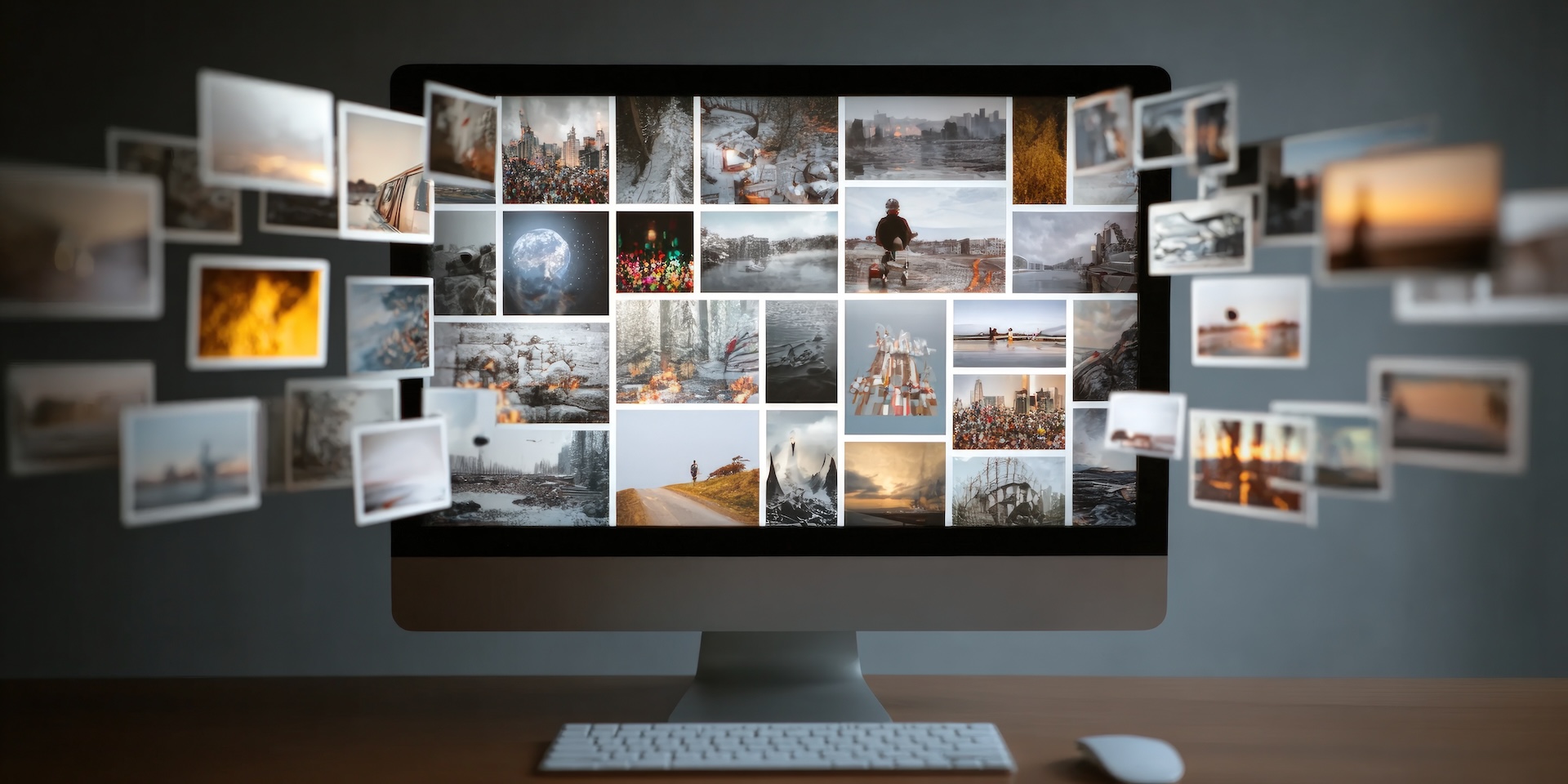
We take our smartphones everywhere, capturing countless irreplaceable moments along the way. From a child’s messy first birthday cake to a quiet sunset on a family vacation, our digital photo libraries hold the story of our lives.
However, digital memories are incredibly vulnerable. Phones get dropped in lakes, laptops crash without warning, and devices simply age out of existence. If your only copy of a family photograph lives on a single device, it is always at risk of disappearing forever.
Creating a photo backup system might sound highly technical or overly complicated. The good news is that protecting your memories is actually quite straightforward. By following a few basic rules, you can ensure your family history remains safe for generations to come.
This guide will show you how to backup photos safely using a simple 3-step system—so your memories are protected for good.
The Golden Rule: The 3-2-1 Backup System
Professional photo managers rely on a simple, foolproof strategy known as the 3-2-1 backup rule. This approach guarantees that a single accident will never wipe out your digital collection.
Here is exactly how the 3-2-1 backup rule works:
- 3 copies: You should have three separate copies of your digital photos.
- 2 types of storage: Keep these copies on at least two different types of media.
- 1 offsite: Store one copy in a secure offsite location, like a cloud server.
Setting up this system is much easier than it sounds. Let us break it down into three steps.
Step 1: Your Primary Photo Library (The Home Base)
The first step is establishing a central hub for all your digital memories. This primary photo library is usually a desktop computer or a high-capacity laptop.
Whenever you take new photos on your phone or tablet, you will transfer them to this home base. Having one centralized location makes it easy to sort your files, delete blurry duplicates, and organize everything into neat, dated folders. This home base counts as the first copy of your photos.
Step 2: Local Physical Backup (The Tangible Security)
Next, you need a physical backup stored close by. An external solid-state drive (SSD) is the perfect tool for this job.
Plug the external drive into your home base computer and copy your entire organized photo library over to it. SSDs are fast, durable, and relatively inexpensive. Keep this drive in a safe place, like a fireproof lockbox or a secure desk drawer. If your main computer ever fails, you have a physical copy sitting right there in your home. This fulfills the requirement of having a second type of storage media.
Step 3: Cloud Backup (The Digital Safety Net)
This is your safety net.
The final piece of the puzzle is the offsite copy. If a fire or flood damages both your computer and your external drive, a cloud backup saves the day.
Services like Backblaze, Google One, or iCloud automatically upload your organized photo library to secure, remote servers. This happens quietly in the background while you use your computer. The cloud backup acts as your ultimate digital safety net, fulfilling the final requirement of the 3-2-1 system.
A Real-Life Example of a Solid Setup
Let us look at how this works in practice. Sarah takes dozens of photos of her dog on her smartphone. Every Sunday, she downloads those photos to her desktop computer (Copy 1). She then plugs in her external hard drive and copies the new files over (Copy 2). Finally, her cloud backup software automatically uploads the new additions to a secure online server (Copy 3).
If Sarah accidentally drops her phone in a puddle, she loses nothing. Her memories are entirely secure.
Common Mistakes to Avoid
When setting up a photo backup system, watch out for a few common pitfalls:
- Treating synchronization as a backup: Services that simply sync files across devices (like a basic iCloud setup) will often delete a photo everywhere if you delete it on your phone. A true backup keeps a permanent copy.
- Relying on old flash drives: USB thumb drives are great for transferring files, but they degrade over time. They are not reliable for long-term archiving.
- Forgetting to update: A backup is only as good as its last update. Make it a habit to back up your primary library regularly.
The Importance of Acting Now
Hardware fails. It is not a matter of if, but when. Waiting until a laptop starts making strange clicking noises is often too late to save the files inside. Taking an hour this weekend to set up a basic photo backup system will give you profound peace of mind. You will never again have to worry about a spilled cup of coffee erasing your favorite vacation photos.
Let Me Help You Protect Your Memories
Organizing a lifetime of digital photos can feel overwhelming, especially if your files are scattered across old devices. You do not have to tackle this massive project alone.
As a professional photo manager, I specialize in rescuing, organizing, and protecting family histories. I can help you consolidate your messy digital files, implement a secure 3-2-1 backup system, and give you the comfort of knowing your memories are safe. Contact me today, and let us build a permanent home for your most cherished moments.